フレッツで夜間に速度が出ないとか通信が途切れるということが多くて苦労させられている人は多い筈。PPPoE接続だとおそらくISPを変更しても大して改善は見込めないと思われるが、一部のISPではIPv6のネイティブ接続(IPoE)やDS-Lite他によるIPv4接続を提供し始めている。フレッツのPPPoE接続の速度障壁となっているPOIを通らない接続方法の提供は今後も増え続けると思われるが、DS-Liteだと全然特殊という程ではないんだけど古い家庭用ブロードバンドルーターが対応しておらず、最近発売にされ始めたちょっとお高めなルーターに買い替えが必要という困った問題がある。UNIX系のOSだと比較的簡単に対応できるんだけど何で使わないかねぇ?
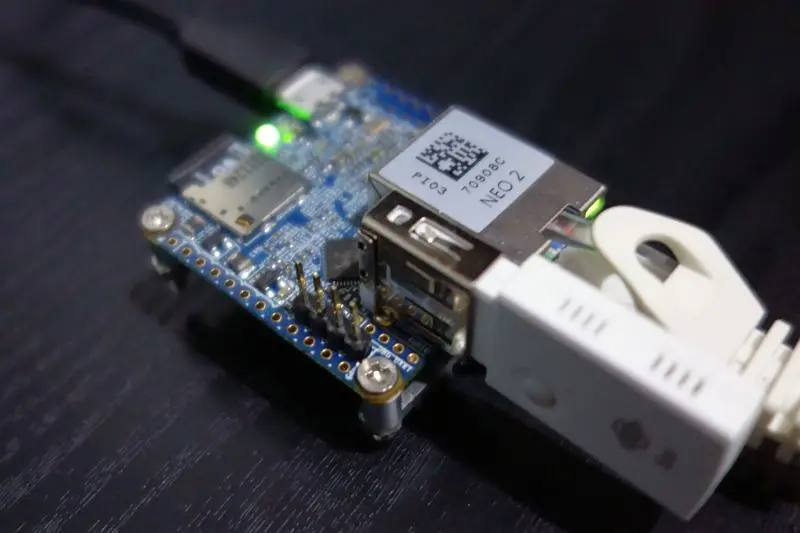
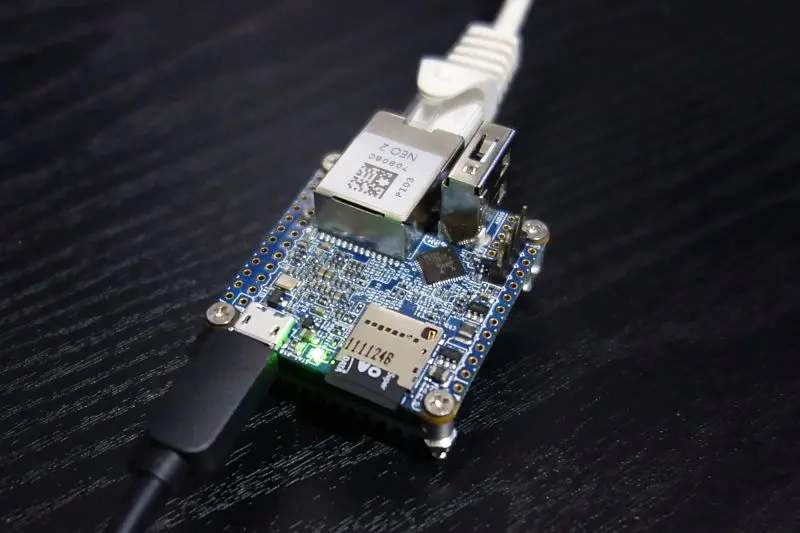
と、いうことで本体価格US$15、ヒートシンクUS$3、送料US$5、2GB以上のmicroSDカード、計3,000円程度で購入できるGbE対応のシングルボードコンピュータNanoPi NEO2をDS-Liteのルーターにしてみた。OSはarmbian (Linux)。
で、記事の題名とおり今回はネットワークポート1つだけの簡易ルーターにする。この方法はUSBネットワークアダプタを別途用意する必要がないので安上がり。そして、そんなんでも普通に使う分には全く困らない程度の速度は出る。なお、今回はIPv6の部分についてはルーターらしいことは全く何もしない。2017年5月28日追記: 言葉足らずだった。IPv6については何もしないけど、この記事の構成なら他の端末でもIPv6は特に考えずに使える。
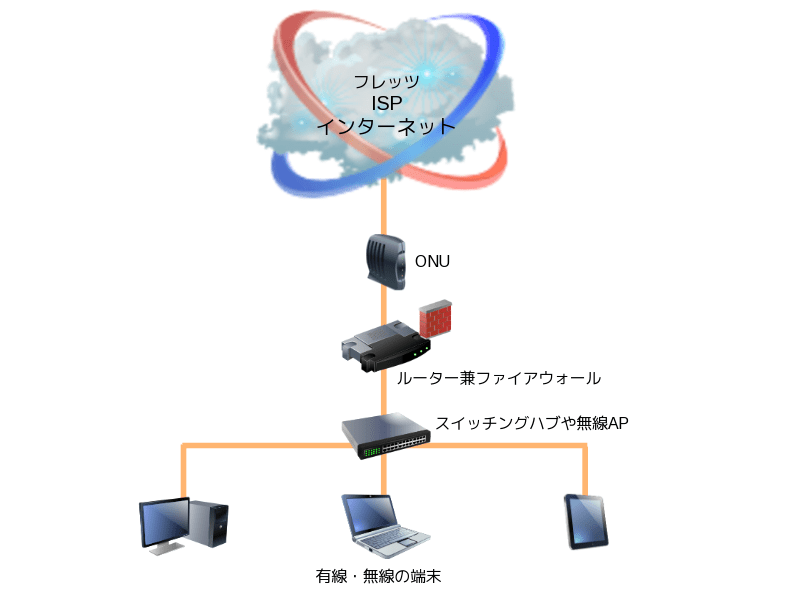
一般的なネットワークの機器の接続関係の図。
PPPoEとかIPoEとかそういうのは置いといて、フレッツのONUから家庭側の機器のある意味一般的な接続はこんな感じ。ONUがあってルーターがあってスイッチがあって家庭内の端末がつながる。HGWを使ってるならONUとルーターをHGWに読み替える。ルーターのハブを使ってるから独立したスイッチングハブは無いよという場合はそこは一体化していると読み替えて欲しい。うちは無線LANルーターだから全然違うんだけどというのがあるかもだけど無線LANルーターから端末までをルーターとスイッチングハブと黄色の線で端末につながるところまでと読み替えて欲しい。ルーターと別に無線APがあるならスイッチングハブと黄色の線で端末につながるところまでに読み替える。そんな感じ。
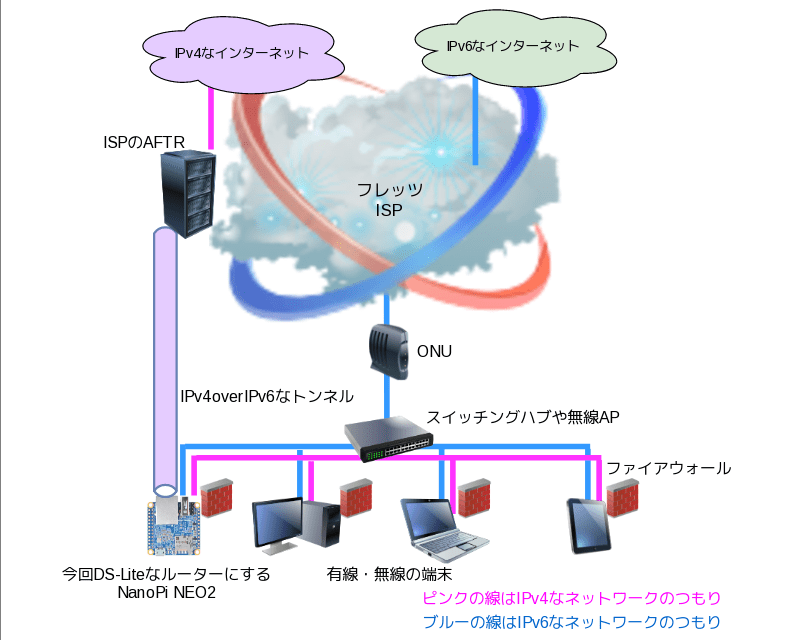
今回の構成はこうなる。ONUとルーターの間にスイッチングハブが入るという形になる。家庭内の他の端末も同様。
IPv4の通信はISP(実際にはVNE)のAFTRとルーター(今回はNanoPi)の間で作ったトンネルで行う。上の図では左側に太めのパイプのようなもので示している。ただし、実際にはこのトンネルは別の線を使うということではなくIPv6の青い線に乗ることになる。だからIPv4overIPv6なトンネル。
IPv4の通信についてはルーターのファイアウォールでトンネルの出口を守れば良いけど、この構成だとIPv6の通信については他の端末の通信をルーターで監視することができないので全ての端末のファイアウォール機能を有効にしておかないと無防備になるのでその点注意が必要。
IPoE
基本的には上の図のようにつなぐだけでOK。後は確認するだけ。
# ifconfig eth0
eth0      Link encap:Ethernet  HWaddr 02:01:a7:xx:xx:xx
          inet6 addr: 2409:xxxx:xxxx:xxxx:xxxx:xxxx:xxxx:xxxx/64 Scope:Global
          inet6 addr: fe80:xxxx:xxxx:xxxx:xxxx:xxxx:xxxx:xxxx/64 Scope:Link
          UP BROADCAST RUNNING MULTICAST  MTU:1500  Metric:1
          RX packets:12 errors:0 dropped:0 overruns:0 frame:0
          TX packets:68 errors:0 dropped:0 overruns:0 carrier:0
          collisions:0 txqueuelen:1000
          RX bytes:1320 (1.2 KiB)  TX bytes:21464 (20.9 KiB)
システムにifconfigが無いなら下。
$ ip addr
1: lo: <loopback ,UP,LOWER_UP> mtu 65536 qdisc noqueue state UNKNOWN group default qlen 1000
    link/loopback 00:00:00:00:00:00 brd 00:00:00:00:00:00
    inet 127.0.0.1/8 scope host lo
       valid_lft forever preferred_lft forever
    inet6 ::1/128 scope host
       valid_lft forever preferred_lft forever
2: eth0: <broadcast ,MULTICAST,UP,LOWER_UP> mtu 1500 qdisc pfifo_fast state UP group default qlen 1000
    link/ether 02:01:a7:xx:xx:xx brd ff:ff:ff:ff:ff:ff
    inet6 2409:xxxx:xxxx:xxxx:xxxx:xxxx:xxxx:xxxx/64 scope global mngtmpaddr dynamic
       valid_lft 2591819sec preferred_lft 604619sec
    inet6 fe80:xxxx:xxxx:xxxx:xxxx:xxxx:xxxx:xxxx/64 scope link
       valid_lft forever preferred_lft forever
IPv4のLANに参加しててそのアドレスがeth0にあってももちろん構わない。むしろウェルカムというかIPv4 LAN環境(アドレス)が何か無いとDS-Liteのトンネル作成で困る。IPoE(IPv6)の部分だけなら正直どうでもいい。
IPoEについてはNanoPi NEO2では特に何かを設定する必要はなく、ONUやHGWと接続すれば上の例のように2409からはじまるIPv6アドレスで勝手につながる筈。つまり2409から始まるPv6アドレスが出来ていればOK.
$ ping6 2404:6800:400a:80a::2004 ←これはwww.google.com
pingの応答があることを確認する。
おそらくここまでで上手く行かないということは無い筈。
で、問題は名前解決ができないこと(がある)。NanoPi NEO2とarmbianの組み合わせではできなかった。
機種/OSによっては特に何もせずとも名前解決できるので「IPv4 LAN」のところまで読み飛ばす。
基本的には手動で/etc/resolv.confにネームサーバを書き込む。(resolv.confのあるホストだけで有効な名前解決)
# vi /etc/resolv.conf
怒られた。Why?
$ ls -l /etc | grep resolv
lrwxrwxrwx 1 root root      27 Apr 16 15:41 resolv.conf -> /run/resolvconf/resolv.conf
シンボリックリンクか・・
でも、/run/resolvconf/resolv.confというファイルはおろか/run/resolvconfというディレクトリさえ存在しなかった。
こんなわけのわからんシンボリックリンク要らんくね?ということで、/etc/resolv.confを一旦削除して/etc/resolv.confをファイルとして作成。
2017年4月現在はNanoPi NEO2用のarmbianはまだあちこちメチャクチャなので変なところは動く程度にテキトーに対応する。
/etc/resolv.confは以下のようにした。
1 2 3 4 5 6 | nameserver 2001:4860:4860::8888 #google-public-dns-a.google.com
nameserver 2001:4860:4860::8844 #google-public-dns-b.google.com
nameserver 2620:0:ccc::2 #resolver1.ipv6-sandbox.opendns.com
nameserver 2620:0:ccd::2 #resolver2.ipv6-sandbox.opendns.com
nameserver 8.8.8.8 #google-public-dns-a.google.com
nameserver 8.8.4.4 #google-public-dns-b.google.com
|
/etc/resolv.conf は作成・更新保存すれば即時に反映するのでシステム再起動とか編集後のコマンド/スクリプト実行は不要。
# ping6 www.google.com
応答すればOK.
IPv4 LAN
IPv4のLAN用の固定IPを設定する。今回は192.168.1.0/24というネットワークで192.168.1.1というIPアドレスを割り当てるが、これでなければならないというのではない。あくまでも例。
このマシンがゲートウェイになるのでデフォルトゲートは設定しない。DNSは/etc/resolv.confで設定しているのでここで指定する必要はないと思う。
1 2 3 4 5 6 7 8 9 | # Wired adapter #1
allow-hotplug eth0
#no-auto-down eth0
#iface eth0 inet dhcp
iface eth0 inet static
address 192.168.1.1
netmask 255.255.255.0
#gateway 192.168.1.1
#dns-nameservers 8.8.8.8 8.8.4.4
|
dhcpクライアントが動いているのが気に入らないので停める。替わりに普通のネットワーク構成を有効化。
# systemctl disable dhcpcd
# systemctl enable networking
# shutdown -r now    ←システム再起動
確認する。
$ ip addr show dev eth0
2: eth0: <broadcast ,MULTICAST,UP,LOWER_UP> mtu 1500 qdisc pfifo_fast state UP group default qlen 1000
    link/ether 02:xx:xx:xx:xx:xx brd ff:ff:ff:ff:ff:ff
    inet 192.168.1.1/24 brd 192.168.1.255 scope global eth0
       valid_lft forever preferred_lft forever
    inet6 2409:xxxx:xxxx:xxxx:xxxx:xxxx:xxxx:xxxx/64 scope global mngtmpaddr dynamic
       valid_lft 2591791sec preferred_lft 604591sec
    inet6 fe80:xxxx:xxxx:xxxx:xxxx:xxxx:xxxx:xxxx/64 scope link
       valid_lft forever preferred_lft forever
こんな感じになる筈。
あとはLAN内の端末からIPv4でルーターに繋がればOK.
ただし、LAN内の他の端末がDHCPクライアントの場合は繋がらないかも。(この記事の後の方でDHCPサーバを動かすのでこの時点では保留にしておいて可)
DS-Lite
基本的にはIPv4overIPv6なトンネルを作成すればOK.
FreeBSDルーターでDS-Liteでも書いたが、トンネルだから「何処から何処」が重要。と、いうことでNanoPiルーターからISP(実際にはVNE)のAFTRにトンネルを掘る。「がとらぼ」の中の人の環境だと、契約しているISPはSo-netだけどSo-netはIPoE(とDS-Lite)をVNEのインターネットマルチフィードに丸投げしているので、実質的なISPはインターネットマルチフィードになる。だからAFTRの情報もSo-netで探してもあるわけ無くてインターネットマルチフィードで探す。「がとらぼ」ではFreeBSDルーターでDS-Liteの記事に書いてるので参照していただければと。
以下3行を実行してDS-Liteが機能するか確認する。
# ip -6 tunnel add dsltun0 mode ipip6 remote 2404:8e??::feed:10? local 2409:xxxx:xxxx:xxxx:xxxx:xxxx:xxxx:xxxx dev eth0
# ip link set dev dsltun0 up
# route add default dev dsltun0
上の例では2404:8e??::feed:10?がAFTRのアドレス。?の部分はもちろん自分の地域のものに合わせる。
2409:xxxx:xxxx:xxxx:xxxx:xxxx:xxxx:xxxxがルーターに割り当てられたIPv6アドレス。
dsltun0の部分は自分でテキトーに決めて良い。ただし、使用中のデバイス名とip6tnl0だけは使えない。自分に分かりやすいデバイス名にしても良いしip6tnl0に1足してip6tnl1としても良い。で、このデバイス名は上の3行全てで共通して使う。
$ ip addr
1: lo: <loopback ,UP,LOWER_UP> mtu 65536 qdisc noqueue state UNKNOWN group default qlen 1000
    link/loopback 00:00:00:00:00:00 brd 00:00:00:00:00:00
    inet 127.0.0.1/8 scope host lo
       valid_lft forever preferred_lft forever
    inet6 ::1/128 scope host
       valid_lft forever preferred_lft forever
2: eth0: <broadcast ,MULTICAST,UP,LOWER_UP> mtu 1500 qdisc pfifo_fast state UP group default qlen 1000
    link/ether 02:xx:xx:xx:xx:xx brd ff:ff:ff:ff:ff:ff
    inet 192.168.1.1/24 brd 192.168.1.255 scope global eth0
       valid_lft forever preferred_lft forever
    inet6 2409:xxxx:xxxx:xxxx:xxxx:xxxx:xxxx:xxxx/64 scope global mngtmpaddr dynamic
       valid_lft 2591767sec preferred_lft 604567sec
    inet6 fe80:xxxx:xxxx:xxxx:xxxx:xxxx:xxxx:xxxx/64 scope link
       valid_lft forever preferred_lft forever
3: ip6tnl0@NONE: <noarp> mtu 1452 qdisc noop state DOWN group default qlen 1000
    link/tunnel6 :: brd ::
4: dsltun0@eth0: <pointopoint ,NOARP,UP,LOWER_UP> mtu 1452 qdisc noqueue state UNKNOWN group default qlen 1000
    link/tunnel6 2409:xxxx:xxxx:xxxx:xxxx:xxxx:xxxx:xxxx peer 2404:8e??::feed:10?
    inet6 fe80:xxxx:xxxx:xxxx:xxxx:xxxx:xxxx:xxxx/64 scope link
       valid_lft forever preferred_lft forever
dsltun0が出来ていてトンネルの入口と出口が指定したものになっていることを確認する。
他に覚えがないip6tnl0というのが出来ているが、どうやら勝手に作られるらしいので無視で。
$ ping www.google.com
PING www.google.com (216.58.xxx.xxx) 56(84) bytes of data.
64 bytes from ****-in-****.1e100.net (216.58.xxx.xxx): icmp_seq=1 ttl=58 time=5.60 ms
64 bytes from ****-in-****.1e100.net (216.58.xxx.xxx): icmp_seq=2 ttl=58 time=5.49 ms
こんな感じでIPv4のpingが送れたらOK.
上で動いた内容をスクリプトとして/etc/rc.localに追記する。(exit 0の前に挿入する形になる)
1 2 3 4 5 6 | sleep 5
AFTR="2404:8e??::feed:10?"
ADDR=`ip addr show eth0 | grep 2409 | cut -d " " -f 6 | cut -d "/" -f 1`
ip -6 tunnel add dsltun0 mode ipip6 remote $AFTR local $ADDR dev eth0
ip link set dev dsltun0 up
route add default dev dsltun0
|
もちろん、2404:8e??::feed:10?の部分は自分の地域のAFTRのアドレスに修正する。
実行タイミングが早すぎると失敗するようなので最初にsleepで5秒待たせて実行するようにしている。(この待ち時間は適当に調整して)
これでNanoPiのシステムを再起動すると自動的にIPv4で通信可能になる筈。
ただし、NanoPiはIPv4で通信できるようになったけど他の端末はできない。そこで以下。
net.ipv4.ip_forward=1
おそらくコメント化されてファイル内に存在している筈なので行頭の#を取るだけ。
手動のコマンドは下。
# sysctl net.ipv4.ip_forward=1
IPv4 LAN内の他の端末が迷子にならないようにDHCPサーバを用意する。
# apt-get install isc-dhcp-server
# mv /etc/dhcp/dhcpd.conf /etc/dhcp/dhcpd.conf.sample
# vi /etc/dhcp/dhcpd.conf
1 2 3 4 5 6 7 8 9 10 11 12 13 14 15 16 17 18 19 20 21 22 23 | authoritative;
default-lease-time 1296000; #2 weeks
max-lease-time 2592000; # 4 weeks
subnet 192.168.1.0 netmask 255.255.255.0 {
range 192.168.1.65 192.168.1.254;
option time-offset 32400; # Japan Standard Time
option routers 192.168.1.1;
option broadcast-address 192.168.1.255;
option ntp-servers 192.168.1.1;
option domain-name "localnet";
option domain-name-servers 8.8.8.8;
}
#host hage {
# hardware ethernet xx:xx:xx:xx:xx:xx;
# fixed-address 192.168.1.2;
#}
#host hoge {
# hardware ethernet yy:yy:yy:yy:yy:yy;
# fixed-address 192.168.1.4;
#}
|
DHCPサーバを起動する。
# service isc-dhcp-server.service start
DHCPサーバの状態を確認する。
# systemctl status isc-dhcp-server.service
これでLAN内の他の端末にIPv4アドレスをリースできるようになっただけでなくNanoPi Neo(のIPアドレス)がIPv4のインターネットへのルーターであることを知らせることができるようになった。あと、DNSサーバのIPアドレスも。
ファイアウォールの設定については割愛。
テスト
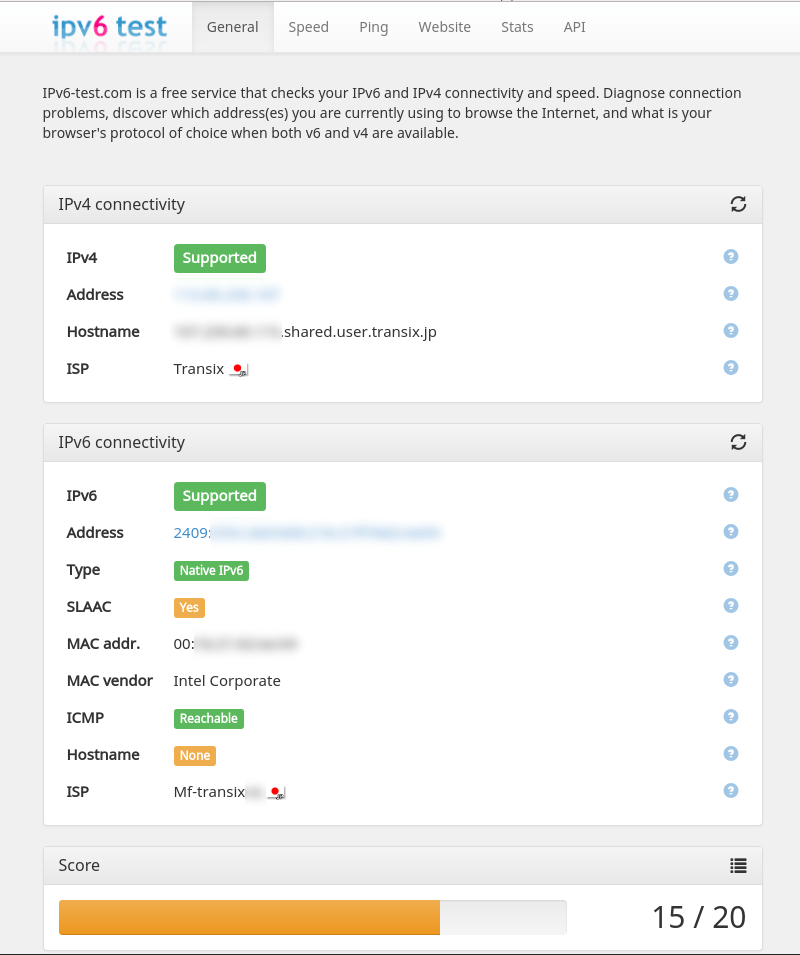
LAN内の他の端末でIPv4(とIPv6)の通信を行う。前回とはほんの少しだけ変えてhttp://ipv6-test.com/でページを表示してみる。
IPv4が緑色の「Supported」になっていることとISPがTransixになっていればOK.
IPv6対応な端末ならIPv6が緑色の「Supported」になっていることとISPがMf-transix-?になっていればOK.(こちらはこの記事的にはどうでも良い)
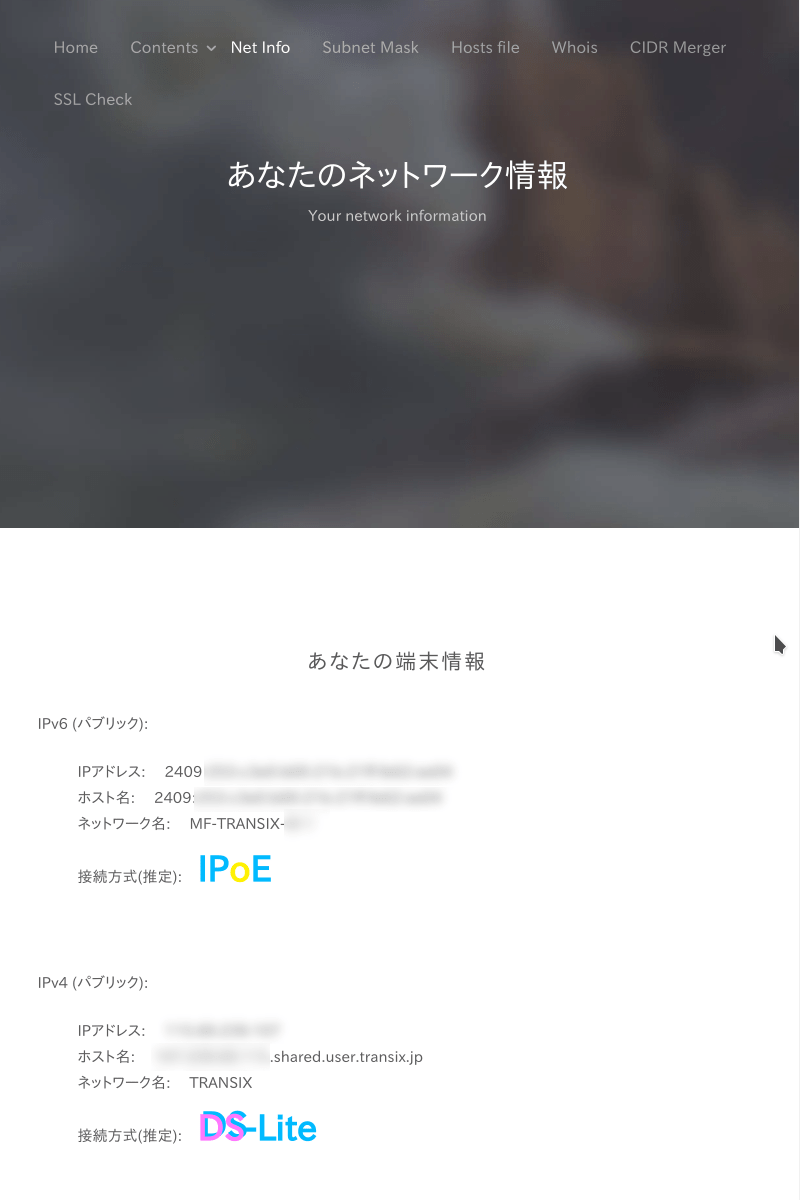
そういえば、すっかり忘れていたけど自前で提供している「悪いインターネット」でも表示できるんだった。使ってね。
こちらはIPv6のネットワーク名がMF-TRANSIX・・だったらIPoE、IPv4のネットワーク名がTRANSIXならDS-Lite。(いづれもインターネットマルチフィード利用の場合)
2017年5月5日追記: MFEEDまたはJPNEからIPoE接続しているっぽい場合とMFEEDでDS-LiteまたはJPNEのv6プラスで接続してるっぽい場合にそれぞれ「IPoE」,「DS-Lite」,「v6プラス」と大きく表示するようにした。(上の画像も更新)
この方がわかり易いよね、たぶん。自前サイトだからできる柔軟さYeah!!。
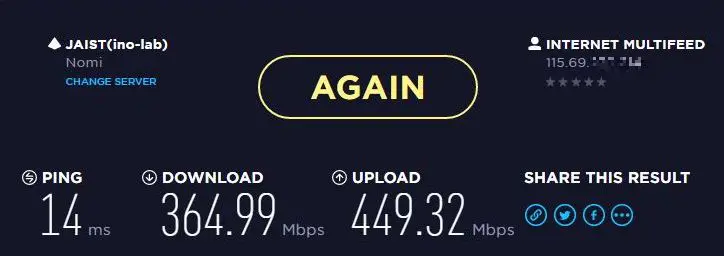
speedtest.netで通信速度を確認。今回はJAIST(Nomi)サーバが選択された。
速度を見てみると、速くも遅くもない程度。金曜日の19時過ぎということとネットワークポート1つのルーターという点を考慮すると頑張っている方かも。
家庭用ブロードバンドルーターのWXR-190xDHPシリーズで使われているCPUがBCM4709A 1GHz。これはARM Cortex-A9のDual-Core 32-bit。
今回ルーターにしたNanoPi NEO2のはH5でARM Cortex-A53 Quad-Core 64-bitというもの。NanoPi NEO2では実際に動作しているCPUクロックが(何故か)不明だけどH5を積んだ他機種では1GHz程度で動いているみたい。Cortex-A9はシングルコアあたりの性能は意外と高いんだけど、コアが2つしかないので周波数が同じと仮定すると、コア数が倍のH5が(全コアをフルに使えば)勝つみたい。とはいえ、BCM4709AはPHYが豪華なので流石にネットワーク機器特化というだけはあって凄いなぁと。
次はUSBポートにUSBネットワークアダプタを挿してネットワークポート2つなルーターもやりたいかな。
2017年4月30日追記:
コマンドの結果表示でどこを見て確認するかわからないというご意見をいただいたのでちょっと色を変えて表示してみた。
あと、IPoE, DS-Liteの確認で「悪いインターネット」が使えるのを画像と共に追記。
- NanoPi NEO2でDS-Liteなルーター ネットワークポート1つ版 ←いまここ
- FreeBSDルーターでIPoE
- FreeBSDルーターでDS-Lite
- FreeBSD mpd5でIPv6接続 (PPPoE) その1
- FreeBSD mpd5でIPv6接続 (PPPoE) その2
- FreeBSD mpd5でIPv6接続 (PPPoE) その3
- NanoPi NEO3にGPSモジュールを接続してNTPサーバとして使用する
- アッチッチなNanoPi NEO3を冷やしたい パッド交換
- NanoPi NEO3冷却力強化後のUnixBench
- アッチッチなNanoPi NEO3を冷やしたい
- NTPサーバの時刻ソースに対するズレの調整
- NanoPi NEO3をv6プラスのルーターにする systemd-networkd + nftables
- NanoPi NEO3のUSB3.0ポートのネットワーク速度
- NanoPi NEO3でArmbian よきところでUnixBench
- NanoPi NEO3が届いた
- NanoPi NEOにRTCモジュールを付ける
- 新しい中華GPSモジュールとChronyで作るNTPサーバ (中編)
- 新しい中華GPSモジュールとChronyで作るNTPサーバ (前編)
- Prometheus2とGrafana6によるシステム監視 シングルボードコンピュータの温度表示
- NanoPi NEOでNTPサーバ再構築 (全まとめ)
- NanoPi NEO2をv6プラスのルーターにする 後編
- NanoPi NEO2をv6プラスのルーターにする 前編
- ELK Stackでシステム監視 FilebeatでNTP統計ログ取得 Logstashで加工
- NanoPi NEO2(arm64)用にFilebeatをビルド
- NanoPi NEO2を超コンパクトなアルミケースに入れる
- NanoPi NEO2用armbian 5.41 Debian 9 Stretch next 4.14.18
- NanoPi NEO2を100均の灰皿に入れてみた
- NanoPi NEO2のシステム監視 RPi-Monitorとnetdata
- NanoPi NEOとGPSモジュール用アルミケースを作る
- NanoPi NEO2 + DACで音楽プレーヤーVolumioを使う
- NanoPi NEO2にDACを接続
- NanoPi NEO2の最大クロック引き下げ後のUnixBench 再び
- NanoPi NEO2用armbian 5.32 Debian 9 Stretch 4.13.0-RC6
- NanoPi NEO2用armbian 5.32 Debian jessie 4.13.0-RC6
- NanoPi NEOをSIP電話機にする 後編 (その2)
- NanoPi NEO2とICカードリーダーでタイムレコーダーを作る(実用化編)